Trezor.io/Start® — Starting Up Your Device | Trezor®
Discover Trezor.io/start for helpful resources covering device verification, software compatibility, wallet setup, and recovery phrase protection.
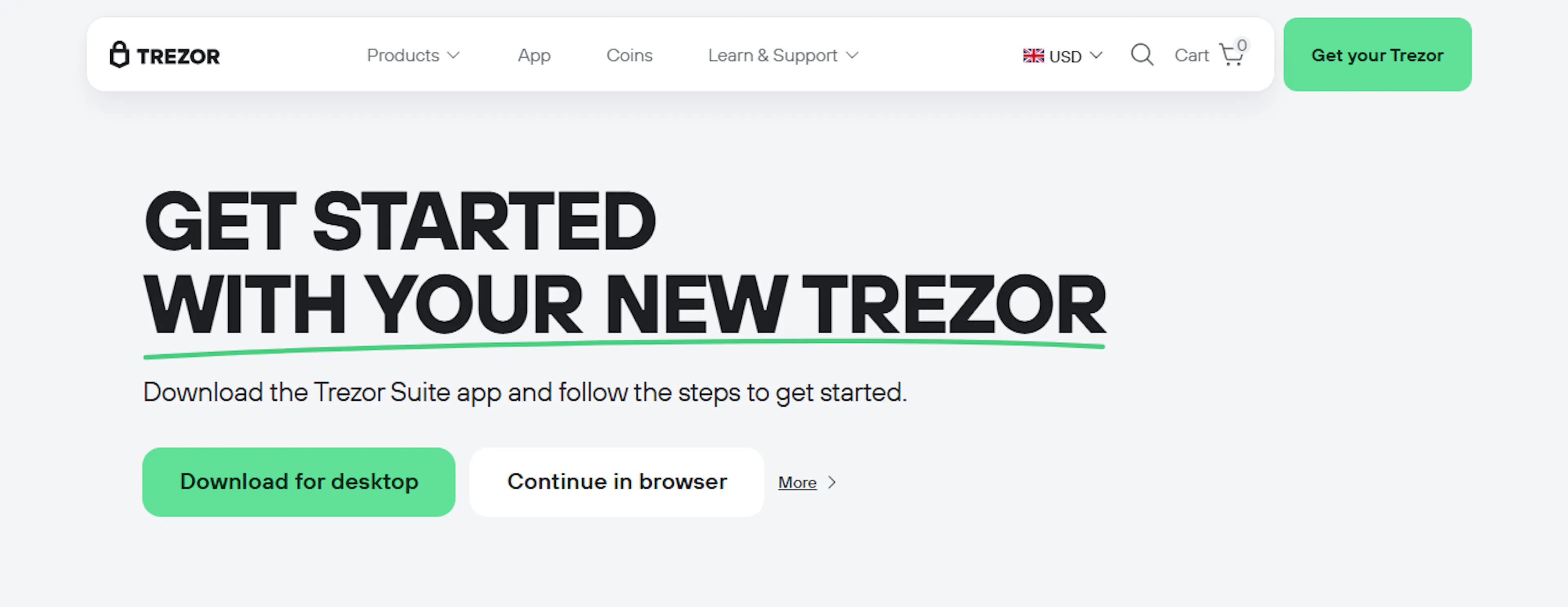
Trezor.io/start: A Simple Guide to Setting Up Your Trezor Wallet
Introduction to Trezor.io/start
Trezor.io/start is the official starting point for users preparing to configure a compatible Trezor hardware wallet. It provides device-specific instructions and helps users access the appropriate software for managing supported cryptocurrencies.
A Trezor hardware wallet is designed to keep private keys protected on a physical device. By following the recommended setup process, users can configure their wallet, create a recovery backup, and learn how to manage their digital assets.
Getting Started With the Official Trezor Setup Page
The first step is visiting the official website at https://trezor.io/start. This page helps users identify the correct setup instructions for their hardware wallet model.
Using official resources is important because unofficial downloads and imitation websites can create security risks. Always check the website address before installing software or entering any information.
Steps to Set Up a Trezor Hardware Wallet
1. Visit Trezor.io/start
Open a browser and enter the official Trezor setup address. Review the available instructions and select the process that matches your device.
2. Connect Your Trezor Device
Connect your hardware wallet using a compatible cable. Follow the instructions shown on the device and in the official setup interface.
3. Install Trezor Suite
Trezor Suite is the official application for managing compatible Trezor hardware wallets. Download it from the official Trezor website and select the version appropriate for your operating system.
4. Verify Your Hardware Wallet
Complete the device verification steps displayed during setup. If a firmware installation or update is required, follow the official instructions for your model.
5. Create a Recovery Backup
Follow the instructions to create your wallet recovery backup. Write down the recovery information as directed and store it securely offline.
Your recovery words provide access to your wallet and must remain private. Never share them with anyone or enter them into a website, online form, or support chat.
6. Access Your Wallet Dashboard
Once setup is complete, open Trezor Suite to explore the available wallet features. Depending on your device and supported networks, you can review accounts, check balances, and access cryptocurrency sending and receiving functions.
Main Features of Trezor Suite
Trezor Suite brings several wallet management tools together in one interface. Depending on the supported device and software version, features may include:
- Portfolio Overview: Review supported cryptocurrency balances and account activity.
- Account Management: Organize compatible cryptocurrency accounts.
- Transaction History: Check previous transfers and transaction details.
- Receiving Assets: Access receiving information for supported networks.
- Sending Cryptocurrency: Prepare transactions and verify their details on your physical device before approval.
Essential Security Tips for Trezor Users
Maintaining wallet security requires careful attention. Keep your device PIN confidential and store your recovery backup in a protected offline location.
Always download Trezor Suite from official sources. Avoid suspicious links, unexpected support messages, and websites requesting recovery words. Never disclose your recovery phrase, even if someone claims to represent technical support.
Before confirming a cryptocurrency transfer, carefully verify the recipient address and transaction details on your hardware wallet.
Conclusion
Trezor.io/start helps users find the official instructions needed to configure a compatible Trezor hardware wallet. From connecting the device to installing Trezor Suite and creating a recovery backup, each stage contributes to a more secure setup experience.
For the latest device-specific guidance, visit the official website: https://trezor.io/start.
This is an independent educational guide and is not an official Trezor publication.